

 Italiano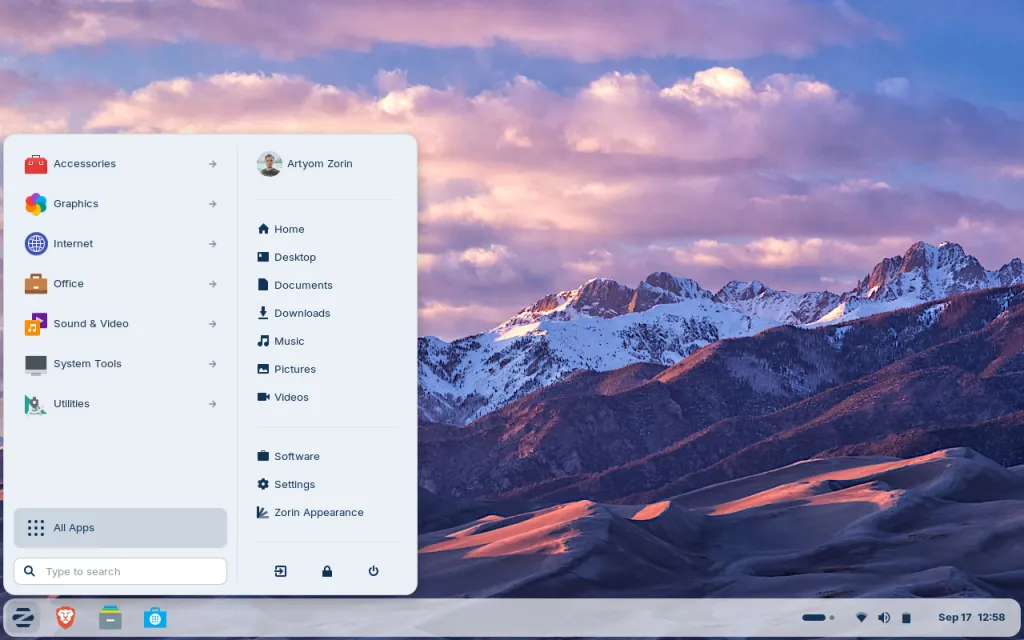
How to give your computer a second life with Zorin OS
A step-by-step guide for everyday users to install a free, fast, and eco-friendly Linux system on old or new PCs and Macs
On 14 October 2025 Microsoft ends support for Windows 10, despite at the time of shutting down its support it’s still the world’s most popular OS for PC.
That means no more security updates or bug fixes – a serious risk particularly when using a PC for professional needss.
If you keep using Windows 10 after that date, you risk malware infections, privacy breaches and slow performance.
Many people are disappointed with this decision and think the only options are buying a new computer based on Windows 11 or switching to a Mac.
Luckily, there is a third path: Zorin OS, a Linux-based operating system that can breathe new life into almost any computer – among the most popular Linux distributions, with a very user-friendly UI (user interface) that can resemble either Windows (10 or 11), Mac or Linux (Ubuntu or others).
What is Zorin OS and why consider it?
Zorin OS is a modern Linux-based operating system.
Linux is an open-source (publicly developed and free to use) family of systems that power everything from smartphones to servers.
Zorin stands out because it looks and feels familiar to Windows or Mac users, so you can start using it without a steep learning curve.
Price model – Zorin OS comes in two editions:
- Zorin OS Core – completely free to download and use, with all essential apps such as web browser, email client, office suite, and media player.
- Zorin OS Pro – a one-time purchase (currently around €48) that adds premium desktop layouts, extra professional software (everything you need like image, music, video editing, Office package), and installation support. You pay once, not yearly. Start with Core (free) and, if happy, upgrade to Pro anytime. But you don’t need to upgrade if you install the open source software independently, all free.
Most home users will be perfectly happy with the free Core version but the Pro adds up excellent software – image something like the full Adobe creative suite free and more.
Why Zorin OS is better for many users than Windows or macOS
Lightweight and fast: Zorin OS runs smoothly on very old hardware—laptops more than ten years old often feel like new again, actually performing faster than on Windows 10.
Secure and private: Linux systems are far less targeted by viruses, and Zorin receives regular free security updates – if you opt for the Pro version, no need to pay for Pro updates either, it’s a one-time purchase only.
Eco-friendly and economical: By reviving an old computer instead of buying a new one, you save money and reduce electronic waste, helping the environment.
No hidden costs: You own the software. There are no yearly license fees or forced upgrades, either for personal or business use.
Three ways to try Zorin OS
- Live USB (test drive): Run Zorin directly from a USB stick without touching your current system. Perfect for testing.
- Dual boot: Install Zorin alongside Windows or macOS. You choose which system to start each time you power on.
- Full installation: Replace your current operating system completely for maximum speed and space.
What you need before you start
- A computer (PC or Mac) with at least 2 GB of memory (RAM) and 15 GB of free disk space.
- A USB flash drive of at least 8 GB. Ideally it should be recent, ensuring fast data transfer. If you need a good USB stick fit for purpose, considering the performance/quality/price ratio, I recommend SanDisk (good alternatives are Samsung and Kingston).
- Reliable internet connection to download the Zorin OS image (an ISO file, which is a disk image used to create bootable media).
- A small program to write the ISO to the USB. I recommend balenaEtcher (free, works on Windows, Mac and Linux).
Step-by-step: Create a bootable USB
- Download Zorin OS Core from zorin.com/os.
- Insert your USB stick and back up any files on it (everything will be erased).
- Open balenaEtcher, select the downloaded ISO file, select your USB drive, and click “Flash”.
This formats the drive (usually to FAT32, a common USB format) and copies Zorin onto it. - When it finishes, safely eject the USB stick.
Boot from the USB
Restart your computer and enter the boot menu—the short setup screen that decides which device to start from.
On many PCs you press a key like F12, F2, or Delete right after turning on.
Choose the USB drive to “try or install Zorin OS”.
On a Mac: Hold the Option (⌥) key immediately after pressing the power button.
Select the USB drive named “EFI Boot”.
If your Mac has Apple’s newer security chip (called T2), you may need to allow external boot:
restart while holding Command + R, open Utilities > Startup Security Utility, and set “Allow booting from external media”.
Please note that MacBook based on the Apple M3 chip might not be ready to install Zorin OS yet – compatibility is expected to be added in the future.
Try first, then install
After booting you can choose “Try Zorin OS” to test it without installing anything – always good to test it first, it won’t harm anything but please note that when testing from the USB stick, it will go slower than when installed (the speed depends on your USB stick data transfer capabilities).
If you like it, double-click the “Install Zorin OS” icon on the desktop and follow the simple wizard: first, pick your language, keyboard, Wi-Fi network, then choose either “Install alongside” (dual boot) or “Erase disk” (full install).
Dual boot means that you can keep the current OS (for example Windows 10) and install Zorin OS as an additional OS. When restarting your PC, you’ll be asked to choose which OS to launch. Dual boot obviously requires enough space on your hard drive. The safest option is to go for full install, picking only Zorin OS, but before doing that please ensure you have saved / backed up any data on your hard drive which is not saved in the cloud or you’ll loose it permanently. So for example, if you have data only stored on your hard drive, save it first on an external USB stick (not the one with Zorin OS) or an external drive, or in the cloud like Google Workspace, Microsoft OneDrive, Dropbox or others – the local drive is safer and cheapers. Once done that, proceed safely with the Zorin OS installer which will guide you step by step – the installation takes only a few minutes.
Zorin OS comes with everyday software ready to go and Windows-software compatibility
Zorin comes with Firefox web browser – but you can install other free browsers later – LibreOffice for documents and spreadsheets, an excellent free alternative to Microsoft Office (consider also OnlyOffice and OpenOffice, both free and available for Zorin OS), music and video players and a software store to add plenty of apps with one click.
The good news is that you can even install many Windows programs using a compatibility layer called Wine (software that lets Windows apps run on Linux).
The end of Windows 10 support is not a reason to spend hundreds of euros on a new computer.
With a free and polished system like Zorin OS, you can extend the life of your PC or Mac, keep it secure, and reduce electronic waste.
Whether you just test it from a USB stick or make it your main system, Zorin proves that a modern, reliable computer experience does not have to cost a cent.
Video installation guide from Digital Scriptorium YouTube channel